
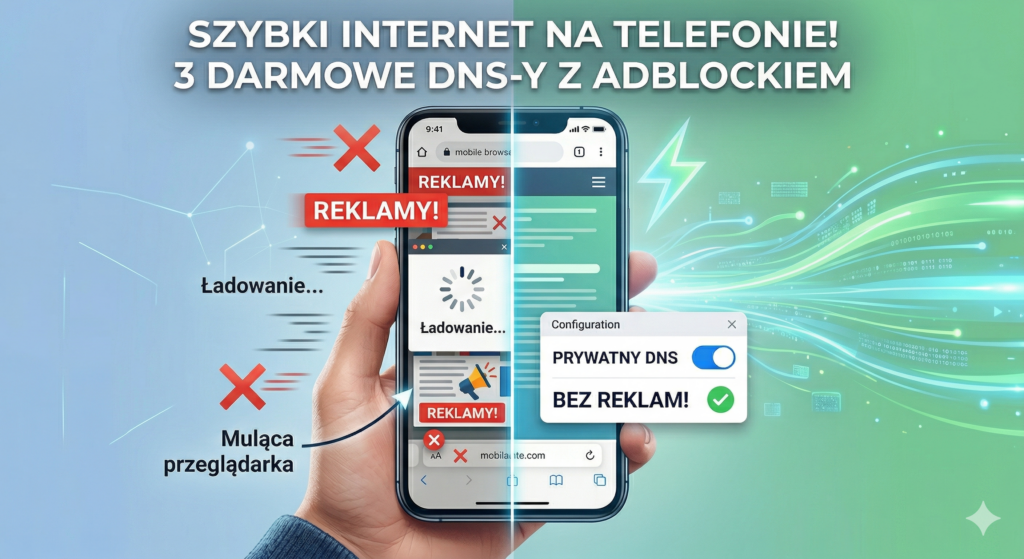
You open an article on your phone, start reading, and suddenly loading a banner moves all the text down, causing you to click on the wrong link. To these annoying jumps of content, there is a general ‘mule’ of the browser, Chrome uses resources to download dozens of external tracking scripts and heavy advertising creations.
Więcej na ten temat: Co to jest Prywatny DNS w telefonie i czy warto….
Instead of installing load-bearing plugins, it’s best to cut the problem at the source. Introducing a private DNS server to one with a built-in adblocker makes requests to ad servers rejected before they even reach the phone. Pages render faster, responsiveness increases drastically, and the phenomenon of sudden shifts of the system disappears.
Here are 3 free and extremely quick solutions to fix this problem.
3 fastest free ad blocking DNS servers
1. Control D (Set ‘Set and Forget’)
- address:
p2.freedns.controld.com
The creators of the popular Windscribe VPN have built a modern infrastructure based on Anycast. The ‘P2’ profile natively cuts ads, tracking scripts and malware. It guarantees very low latency and instant content loading.
2. Mullvad DNS (maximum privacy)
- address:
adblock.dns.mullvad.net
Swedish project with a rigorous policy of no logs (zero-logs). It works fast, is 100% free and effectively filters traffic from unwanted elements at the network level. A great choice for people who value full anonymity.
3. NextDNS (Full Control for Advanced)
- address: Requires free registration to generate your own address (e.g..
abc1234.dns.nextdns.io).
Industry standard with servers, incl. in Warsaw, which gives an excellent reaction time. It allows you to select blocking lists yourself (e.g. Polish filters known from Ublock Origin) and analyze blocked domains.
- limitation: The free plan includes 300,000 queries per month. After it runs out, the ads come back, but the DNS itself is still running at maximum speed.
How to change private DNS on your phone?
configuration on android
Android supports encrypted DNS natively from version 9.0.
- Enter in Settings.
- Go to Network and Internet (in Samsung: connections > More connection settings).
- Choose an option Private DNS.
- mark DNS Private Provider Host Name.
- Paste the selected address (e.g..
p2.freedns.controld.com) and click save.
iOS configuration (iPhone)
The Apple system requires a configuration file to be added to keep the filtering stable on both Wi-Fi and cellular data (LTE/5G).
- In the Safari browser, visit the website of the selected supplier (Control D, Mullvad and NextDNS have ready-made profile generators for Apple).
- Download the configuration profile (file
.mobileconfig). - Go to Settings > general > VPN and device management.
- Select the downloaded profile and click Install.
